
Microsoft Azure documentation
Deploy SmolLM3 on Microsoft Foundry
Deploy SmolLM3 on Microsoft Foundry
This example showcases how to deploy SmolLM3 from the Hugging Face collection on Microsoft Foundry as an Azure Machine Learning Managed Online Endpoint, powered by Transformers with an OpenAI compatible route. Additionally, this example also showcases how to run inference with the OpenAI Python SDK for different scenarios and use-cases.

TL;DR Transformers acts as the model-definition framework for state-of-the-art machine learning models in text, computer vision, audio, video, and multimodal model, for both inference and training. Microsoft Foundry (formerly Azure AI Foundry) provides a unified platform for enterprise AI operations, model builders, and application development. Azure Machine Learning is a cloud service for accelerating and managing the machine learning (ML) project lifecycle.
This example will specifically deploy HuggingFaceTB/SmolLM3-3B from the Hugging Face Hub (or see it on AzureML or on Microsoft Foundry) as an Azure Machine Learning Managed Online Endpoint on Microsoft Foundry.
SmolLM3 is a 3B parameter language model designed to push the boundaries of small models. It supports dual mode reasoning, 6 languages and long context. SmolLM3 is a fully open model that offers strong performance at the 3B–4B scale.
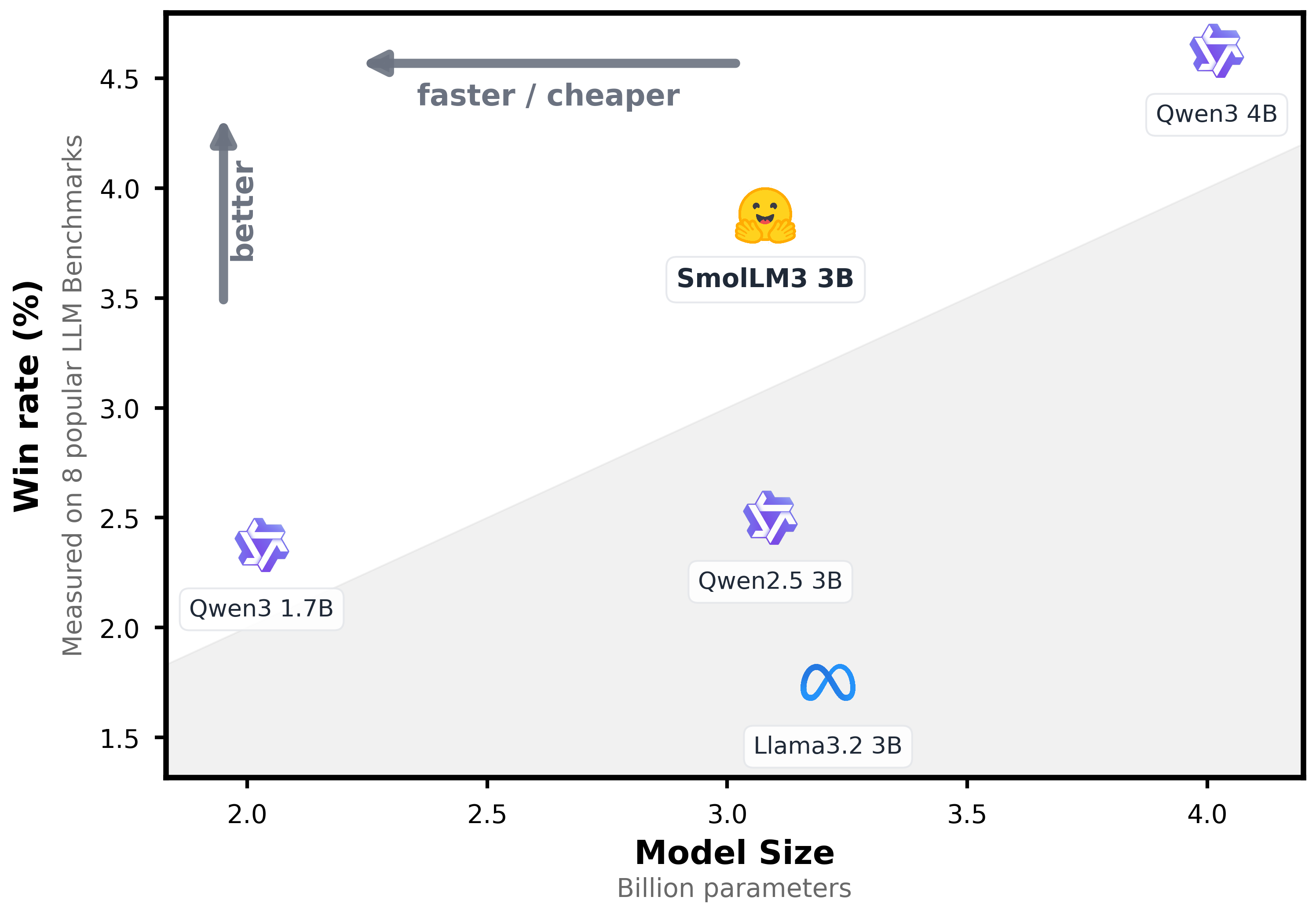
The model is a decoder-only transformer using GQA and NoPE (with 3:1 ratio), it was pretrained on 11.2T tokens with a staged curriculum of web, code, math and reasoning data. Post-training included midtraining on 140B reasoning tokens followed by supervised fine-tuning and alignment via Anchored Preference Optimization (APO).
- Instruct model optimized for hybrid reasoning
- Fully open model: open weights + full training details including public data mixture and training configs
- Long context: Trained on 64k context and supports up to 128k tokens using YARN extrapolation
- Multilingual: 6 natively supported (English, French, Spanish, German, Italian, and Portuguese)


For more information, make sure to check our model card on the Hugging Face Hub.
Pre-requisites
To run the following example, you will need to comply with the following pre-requisites, alternatively, you can also read more about those in the Azure Machine Learning Tutorial: Create resources you need to get started.
- An Azure account with an active subscription.
- The Azure CLI installed and logged in.
- The Azure Machine Learning extension for the Azure CLI.
- An Azure Resource Group.
- A Hub-based project on Microsoft Foundry.
For more information, please go through the steps in the guide “Configure Azure Machine Learning and Microsoft Foundry”.
Setup and installation
In this example, the Azure Machine Learning SDK for Python will be used to create the endpoint and the deployment, as well as to invoke the deployed API. Along with it, you will also need to install azure-identity to authenticate with your Azure credentials via Python.
%pip install azure-ai-ml azure-identity --upgrade --quiet
More information at Azure Machine Learning SDK for Python.
Then, for convenience setting the following environment variables is recommended as those will be used along the example for the Azure Machine Learning Client, so make sure to update and set those values accordingly as per your Microsoft Azure account and resources.
%env LOCATION eastus
%env SUBSCRIPTION_ID <YOUR_SUBSCRIPTION_ID>
%env RESOURCE_GROUP <YOUR_RESOURCE_GROUP>
%env WORKSPACE_NAME <YOUR_WORKSPACE_NAME>
Finally, you also need to define both the endpoint and deployment names, as those will be used throughout the example too:
Note that endpoint names must to be globally unique per region i.e., even if you don’t have any endpoint named that way running under your subscription, if the name is reserved by another Azure customer, then you won’t be able to use the same name. Adding a timestamp or a custom identifier is recommended to prevent running into HTTP 400 validation issues when trying to deploy an endpoint with an already locked / reserved name. Also the endpoint name must be between 3 and 32 characters long.
import os
from uuid import uuid4

os.environ["ENDPOINT_NAME"] = f"smollm3-endpoint-{str(uuid4())[:8]}"
os.environ["DEPLOYMENT_NAME"] = f"smollm3-deployment-{str(uuid4())[:8]}"
Authenticate to Azure Machine Learning
Initially, you need to authenticate into the Microsoft Foundry via Azure Machine Learning with the Azure Machine Learning Python SDK, which will be later used to deploy HuggingFaceTB/SmolLM3-3B as an Azure Machine Learning Managed Online Endpoint in your Microsoft Foundry.
On standard Azure Machine Learning deployments you’d need to create the
MLClientusing the Azure Machine Learning Workspace as theworkspace_namewhereas for Microsoft Foundry, you need to provide the Hub-based project name as theworkspace_nameinstead, and that will deploy the endpoint under Microsoft Foundry too.
import os
from azure.ai.ml import MLClient
from azure.identity import DefaultAzureCredential

client = MLClient(
    credential=DefaultAzureCredential(),
    subscription_id=os.getenv("SUBSCRIPTION_ID"),
    resource_group_name=os.getenv("RESOURCE_GROUP"),
    workspace_name=os.getenv("WORKSPACE_NAME"),
)
Create and Deploy Foundry Endpoint
Before creating the Managed Online Endpoint, you need to build the model URI, which is formatted as it follows azureml://registries/HuggingFace/models/<MODEL_ID>/labels/latest where the MODEL_ID won’t be the Hugging Face Hub ID but rather its name on Azure, as follows:
model_id = "HuggingFaceTB/SmolLM3-3B"

model_uri = f"azureml://registries/HuggingFace/models/{model_id.replace('/', '-').replace('_', '-').lower()}/labels/latest"
model_uri
[!NOTE] To check if a model from the Hugging Face Hub is available in Azure, you should read about it in Supported Models. If not, you can always Request a model addition in the Hugging Face collection on Azure).
Then you need to create the ManagedOnlineEndpoint via the Azure Machine Learning Python SDK as follows.
Every model in the Hugging Face collection is powered by an efficient inference backend, and each of those can run on a wide variety of instance types (as listed in Supported Hardware). Since for models and inference engines require a GPU-accelerated instance, you might need to request a quota increase as per Manage and increase quotas and limits for resources with Azure Machine Learning.
from azure.ai.ml.entities import ManagedOnlineEndpoint, ManagedOnlineDeployment

endpoint = ManagedOnlineEndpoint(name=os.getenv("ENDPOINT_NAME"))

deployment = ManagedOnlineDeployment(
    name=os.getenv("DEPLOYMENT_NAME"),
    endpoint_name=os.getenv("ENDPOINT_NAME"),
    model=model_uri,
    instance_type="Standard_NC40ads_H100_v5",
    instance_count=1,
)client.begin_create_or_update(endpoint).wait()

On Microsoft Foundry the endpoint will only be listed within the “My assets -> Models + endpoints” tab once the deployment is created, not before as in Azure Machine Learning where the endpoint is shown even if it doesn’t contain any active or in-progress deployments.
client.online_deployments.begin_create_or_update(deployment).wait()

The deployment might take ~10-15 minutes, but it could as well take longer depending on the selected SKU availability in the region. Once deployed, you will be able to inspect the endpoint details, the real-time logs, how to consume the endpoint, and monitoring (on preview).
Find more information about it at Azure Machine Learning Managed Online Endpoints.
Send requests to the Foundry Endpoint
Finally, now that the Foundry Endpoint is deployed, you can send requests to it. In this case, since the task of the model is text-generation (also known as chat-completion) you can use the OpenAI SDK with the OpenAI-compatible route and send requests to the scoring URI i.e., /v1/chat/completions.
Note that below only some of the options are listed, but you can send requests to the deployed endpoint as long as you send the HTTP requests with the
azureml-model-deploymentheader set to the name of the Foundry Deployment (not the Endpoint), and have the necessary authentication token / key to send requests to the given endpoint; then you can send HTTP request to all the routes that the backend engine is exposing, not only to the scoring route.
%pip install openai --upgrade --quiet
To use the OpenAI Python SDK with Azure Machine Learning Managed Online Endpoints, you need to first retrieve:
api_urlwith the/v1route (that contains thev1/chat/completionsendpoint that the OpenAI Python SDK will send requests to)api_keywhich is the API Key on Microsoft Foundry or the primary key in Azure Machine Learning (unless a dedicated Azure Machine Learning Token is used instead)
from urllib.parse import urlsplit

api_key = client.online_endpoints.get_keys(os.getenv("ENDPOINT_NAME")).primary_key

url_parts = urlsplit(client.online_endpoints.get(os.getenv("ENDPOINT_NAME")).scoring_uri)
api_url = f"{url_parts.scheme}://{url_parts.netloc}/v1"
Alternatively, you can also build the API URL manually as it follows, since the URIs are globally unique per region, meaning that there will only be one endpoint named the same way within the same region:
api_url = f"https://{os.getenv('ENDPOINT_NAME')}.{os.getenv('LOCATION')}.inference.ml.azure.com/v1"Or just retrieve it from either Microsoft Foundry or the Azure Machine Learning Studio.
Then you can use the OpenAI Python SDK normally, making sure to include the extra header azureml-model-deployment header that contains the Microsoft Foundry or Azure Machine Learning Deployment.
Via the OpenAI Python SDK it can either be set within each call to chat.completions.create via the extra_headers parameter as commented below, or via the default_headers parameter when instantiating the OpenAI client (which is the recommended approach since the header needs to be present on each request, so setting it just once is preferred).
import os
from openai import OpenAI

openai_client = OpenAI(
    base_url=api_url,
    api_key=api_key,
    default_headers={"azureml-model-deployment": os.getenv("DEPLOYMENT_NAME")},
)
Chat Completions
completion = openai_client.chat.completions.create(
    model="HuggingFaceTB/SmolLM3-3B",
    messages=[
        {
            "role": "system",
            "content": "You are an assistant that responds like a pirate.",
        },
        {
            "role": "user",
            "content": "Give me a brief explanation of gravity in simple terms.",
        },
    ],
    max_tokens=128,
)
print(completion)
# ChatCompletion(id='chatcmpl-74f6852e28', choices=[Choice(finish_reason='length', index=0, logprobs=None, message=ChatCompletionMessage(content="<think>\nOkay, the user wants a simple explanation of gravity. Let me start by recalling what I know. Gravity is the force that pulls objects towards each other. But how to explain that simply?\n\nMaybe start with a common example, like how you fall when you jump. That's gravity pulling you down. But wait, I should mention that it's not just on Earth. The moon orbits the Earth because of gravity too. But how to make that easy to understand?\n\nI need to avoid technical terms. Maybe use metaphors. Like comparing gravity to a magnet, but not exactly. Or think of it as a stretchy rope pulling", refusal=None, role='assistant', annotations=[], audio=None, function_call=None, tool_calls=None))], created=1753178803, model='HuggingFaceTB/SmolLM3-3B', object='chat.completion', service_tier='default', system_fingerprint='1a28be5c-df18-4e97-822f-118bf57374c8', usage=CompletionUsage(completion_tokens=128, prompt_tokens=66, total_tokens=194, completion_tokens_details=CompletionTokensDetails(accepted_prediction_tokens=0, audio_tokens=0, reasoning_tokens=0, rejected_prediction_tokens=0), prompt_tokens_details=PromptTokensDetails(audio_tokens=0, cached_tokens=0), reasoning_tokens=0))
Extended Thinking Mode
By default, SmolLM3-3B enables extended thinking, so the example above generates the output with a reasoning trace as the reasoning is enabled by default.
To enable and disable it, you can provide either /think and /no_think in the system prompt, respectively.
completion = openai_client.chat.completions.create(
    model="HuggingFaceTB/SmolLM3-3B",
    messages=[
        {
            "role": "system",
            "content": "/no_think You are an assistant that responds like a pirate.",
        },
        {
            "role": "user",
            "content": "Give me a brief explanation of gravity in simple terms.",
        },
    ],
    max_tokens=128,
)
print(completion)
# ChatCompletion(id='chatcmpl-776e84a272', choices=[Choice(finish_reason='length', index=0, logprobs=None, message=ChatCompletionMessage(content="Arr matey! Ye be askin' about gravity, the mighty force that keeps us swabbin' the decks and not floatin' off into the vast blue yonder. Gravity be the pull o' the Earth, a mighty force that keeps us grounded and keeps the stars in their place. It's like a giant invisible hand that pulls us towards the center o' the Earth, makin' sure we don't float off into space. It's what makes the apples fall from the tree and the moon orbit 'round the Earth. So, gravity be the force that keeps us all tied to this fine planet we call home.", refusal=None, role='assistant', annotations=[], audio=None, function_call=None, tool_calls=None))], created=1753178805, model='HuggingFaceTB/SmolLM3-3B', object='chat.completion', service_tier='default', system_fingerprint='d644cb1c-84d6-49ae-b790-ac6011851042', usage=CompletionUsage(completion_tokens=128, prompt_tokens=72, total_tokens=200, completion_tokens_details=CompletionTokensDetails(accepted_prediction_tokens=0, audio_tokens=0, reasoning_tokens=0, rejected_prediction_tokens=0), prompt_tokens_details=PromptTokensDetails(audio_tokens=0, cached_tokens=0), reasoning_tokens=0))
Multilingual capabilities
As mentioned before, SmolLM3-3B has been trained to natively support 6 languages: English, French, Spanish, German, Italian, and Portuguese; meaning that you can leverage its multilingual potential by sending requests on any of those languages.
completion = openai_client.chat.completions.create(
    model="HuggingFaceTB/SmolLM3-3B",
    messages=[
        {
            "role": "system",
            "content": "/no_think You are an expert translator.",
        },
        {
            "role": "user",
            "content": "Translate the following English sentence into both Spanish and German: 'The brown cat sat on the mat.'",
        },
    ],
    max_tokens=128,
)
print(completion)
# ChatCompletion(id='chatcmpl-da6188629f', choices=[Choice(finish_reason='stop', index=0, logprobs=None, message=ChatCompletionMessage(content="The translation of the English sentence 'The brown cat sat on the mat.' into Spanish is: 'El gato marrón se sentó en el tapete.'\n\nThe translation of the English sentence 'The brown cat sat on the mat.' into German is: 'Der braune Katze saß auf dem Teppich.'", refusal=None, role='assistant', annotations=[], audio=None, function_call=None, tool_calls=None))], created=1753178807, model='HuggingFaceTB/SmolLM3-3B', object='chat.completion', service_tier='default', system_fingerprint='054f8a76-4e8c-4a2f-90eb-31f0e802916c', usage=CompletionUsage(completion_tokens=68, prompt_tokens=77, total_tokens=145, completion_tokens_details=CompletionTokensDetails(accepted_prediction_tokens=0, audio_tokens=0, reasoning_tokens=0, rejected_prediction_tokens=0), prompt_tokens_details=PromptTokensDetails(audio_tokens=0, cached_tokens=0), reasoning_tokens=0))
Agentic use-cases and Tool Calling
SmolLM3-3B has tool calling capabilities, meaning that you can provide a tool or list of tools that the LLM can leverage and use.
To prevent the
tool_callfrom being incomplete, you might need either unset the value formax_completion_tokens(formermax_tokens) or set it to a fair enough value so that the model stops producing tokens due to length limitations before thetool_callis complete.
completion = openai_client.chat.completions.create(
    model="HuggingFaceTB/SmolLM3-3B",
    messages=[{"role": "user", "content": "What is the weather like in New York?"}],
    tools=[
        {
            "type": "function",
            "function": {
                "name": "get_weather",
                "description": "Get the current weather in a given location",
                "parameters": {
                    "type": "object",
                    "properties": {
                        "location": {
                            "type": "string",
                            "description": "The city and state, e.g. San Francisco, CA",
                        },
                        "unit": {
                            "type": "string",
                            "enum": ["celsius", "fahrenheit"],
                            "description": "The unit of temperature",
                        },
                    },
                    "required": ["location"],
                },
            },
        }
    ],
    tool_choice="auto",
    max_completion_tokens=256,
)
print(completion)
# ChatCompletion(id='chatcmpl-c36090e6b5', choices=[Choice(finish_reason='tool_calls', index=0, logprobs=None, message=ChatCompletionMessage(content='<think>I need to retrieve the current weather information for New York, so I\'ll use the get_weather function with the location set to \'New York\' and the unit set to \'fahrenheit\'.</think>\n<tool_call>{"name": "get_weather", "arguments": {"location": "New York", "unit": "fahrenheit"}}</tool_call>', refusal=None, role='assistant', annotations=[], audio=None, function_call=None, tool_calls=[ChatCompletionMessageToolCall(id='call-5d5eb71a', function=Function(arguments='{"location": "New York", "unit": "fahrenheit"}', name='get_weather'), type='function')]))], created=1753178808, model='HuggingFaceTB/SmolLM3-3B', object='chat.completion', service_tier='default', system_fingerprint='5e58b305-773c-40b6-900b-fe5b177aeab9', usage=CompletionUsage(completion_tokens=68, prompt_tokens=442, total_tokens=510, completion_tokens_details=CompletionTokensDetails(accepted_prediction_tokens=0, audio_tokens=0, reasoning_tokens=0, rejected_prediction_tokens=0), prompt_tokens_details=PromptTokensDetails(audio_tokens=0, cached_tokens=0), reasoning_tokens=0))
Release resources
Once you are done using the Foundry Endpoint, you can delete the resources (i.e., you will stop paying for the instance on which the model is running and all the attached costs) as follows:
client.online_endpoints.begin_delete(name=os.getenv("ENDPOINT_NAME")).result()Conclusion
Throughout this example you learnt how to create and configure your Azure account for Azure Machine Learning and Microsoft Foundry, how to then create a Managed Online Endpoint running an open model from the Hugging Face collection on Microsoft Foundry and Azure Machine Learning, how to send inference requests with OpenAI SDK for a wide variety of use-cases, and finally, how to stop and release the resources.
If you have any doubt, issue or question about this example, feel free to open an issue and we’ll do our best to help!
Update on GitHub📍 Find the complete example on GitHub here!